Schema Browser
The felis browser command builds a static website for browsing schemas.
It has a page for each schema and each table, a navigation tree of everything in the schemas, and a search interface.
The Rubin Observatory’s SDM Schemas site is built with this tool.
The site is plain HTML, CSS and JavaScript, so it needs no web server or database. You can open it straight from a disk or publish it with any static web hosting.
Building a site
Pass the schema files and an output directory:
felis browser --output-dir ./site schemas/*.yaml
Note
The wildcard in schemas/*.yaml is expanded by the Bash shell, not by Felis: the shell replaces it with the names of all the .yaml files in the schemas directory before running the command.
To build a site for only some schemas, list their files instead:
felis browser --output-dir ./site schemas/schema1.yaml schemas/schema2.yaml
As with the other commands, a schema can also be given as a URI.
For example, resource://mypackage/schemas/schema1.yaml is the file schemas/schema1.yaml inside the installed Python package mypackage, wherever that package is installed.
To view the locally generated site, open site/index.html in a web browser.
The schema files are checked against the Felis data model as they are read, and the command stops with an error if one isn’t valid.
The command’s options are also listed under felis browser in the command line reference.
To customize the site, add a configuration file with --config:
felis browser --output-dir ./site --config site.yaml schemas/*.yaml
The output directory contains:
index.htmlThe home page, which lists all the schemas.
schemas/<schema>/index.htmlA page for each schema, listing its tables.
schemas/<schema>/<table>.htmlA page for each table, with its columns, indexes and constraints.
assets/The stylesheets, scripts and images shared by the pages, including the data for the navigation tree and the search. That data, in
nav-data.js, has every name and description, so it grows with the schemas: for the 28 SDM schemas it’s about 3 MB, or 320 KB compressed. Every page loads it, but a browser usually keeps it in its cache after the first page.
Schemas and tables are named in lowercase in the file names, with characters other than letters and digits replaced by hyphens.
Felis doesn’t remove anything already in the output directory. Pages from an earlier build, such as the page of a table that has since been renamed or removed, stay there unless you empty the directory first.
Warning
If two schemas end up with the same name, the second gets -2 added to it, the third -3, and so on.
This may change in a future version, so that a schema can set a display name for the site to use instead.
Using the site
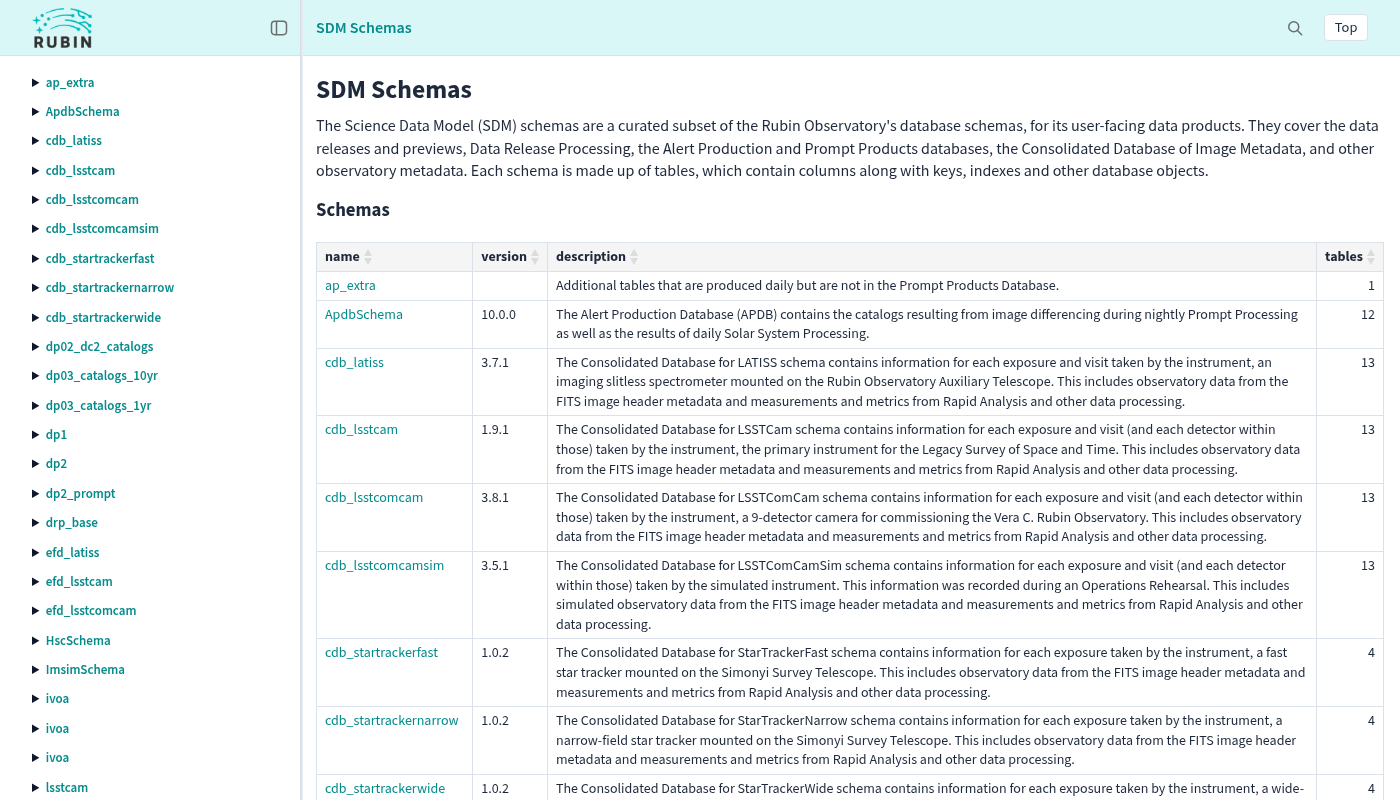
The home page, listing the schemas.
Each page has the same layout:
The sidebar on the left has the site icon at the top, if one is configured, and a tree of every schema, table, column, index and constraint. Click the arrows to expand the tree and the names to go to their pages. The page you are on is highlighted. Drag the sidebar’s right edge to make it wider or narrower. Hide it with the button at its top right; it stays hidden as you go from page to page, until you show it again or close the browser tab. (In Firefox, a site opened from disk rather than a web server doesn’t keep the sidebar hidden from page to page, as Firefox treats each file separately.)
The header shows where you are, as links back up to the schema and the home page. At the right are the search button and the Top button, which scrolls back to the top of the page.
The footer shows who maintains the schemas, if configured, when the site was built, and a link to the Felis documentation.
Schema pages
A schema page shows the schema’s version and description, and a table of its tables with the number of columns in each.
The version is shown only if the schema sets one (with version in its YAML file), and likewise the description.
If the diagrams setting is on, and the schema has foreign keys, the page also has a relationship diagram.
It shows each table that has a foreign key or is referenced by one, with its key columns, and a line for each foreign key.
Click Open full size below it to see it on its own in a new tab.
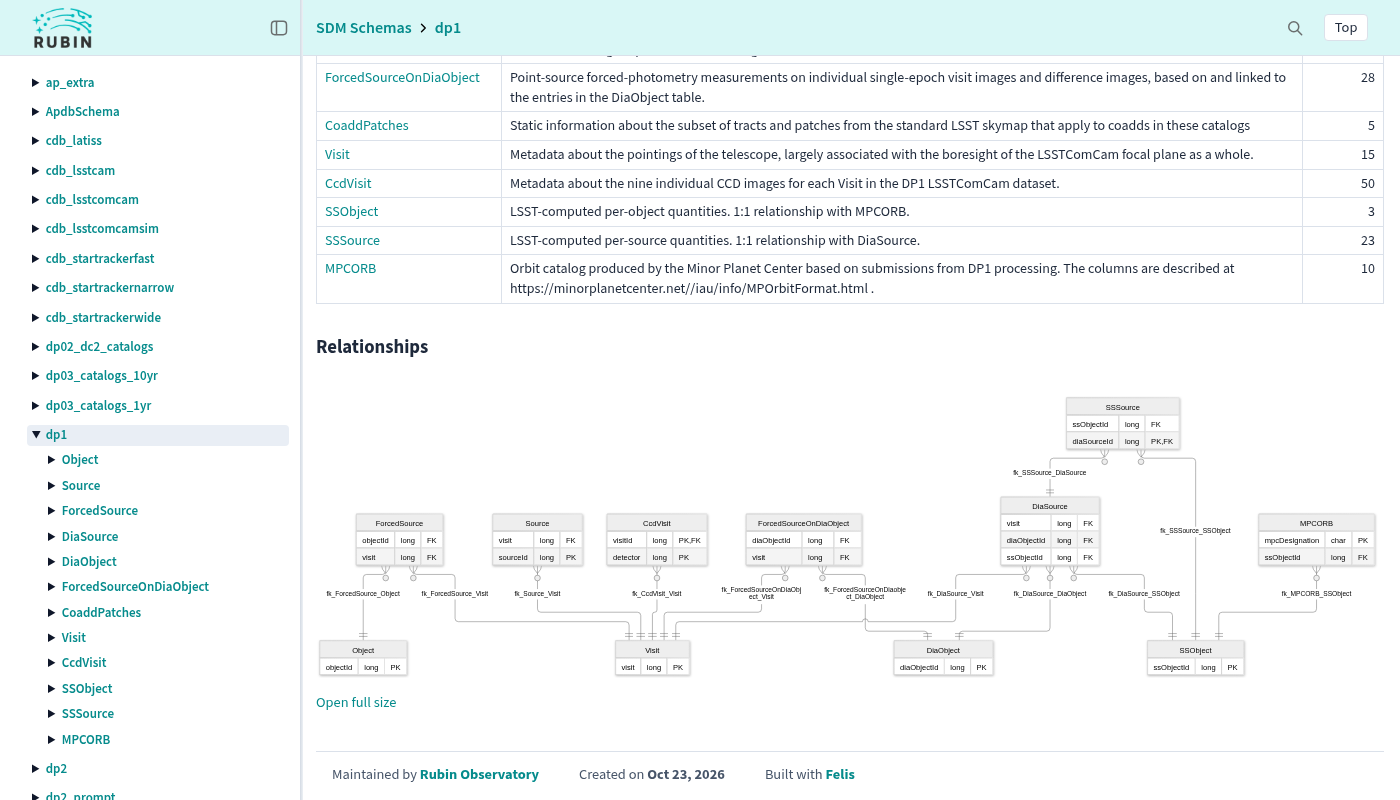
The relationship diagram of a schema.
Warning
The relationship diagrams may not display correctly in all web browsers. They have only been tested thoroughly in Chrome.
Table pages
A table page shows the table’s description and its columns, followed by its indexes and constraints, if it has any.
The columns table can be sorted by clicking a column heading, filtered with the Search box above it, and downloaded with the CSV button. Tags after a column’s name show whether it is part of the primary key, a foreign key or indexed. Hold the pointer over a tag for details, such as the column a foreign key refers to. Columns named in the indexes and constraints link back to their rows in the columns table.
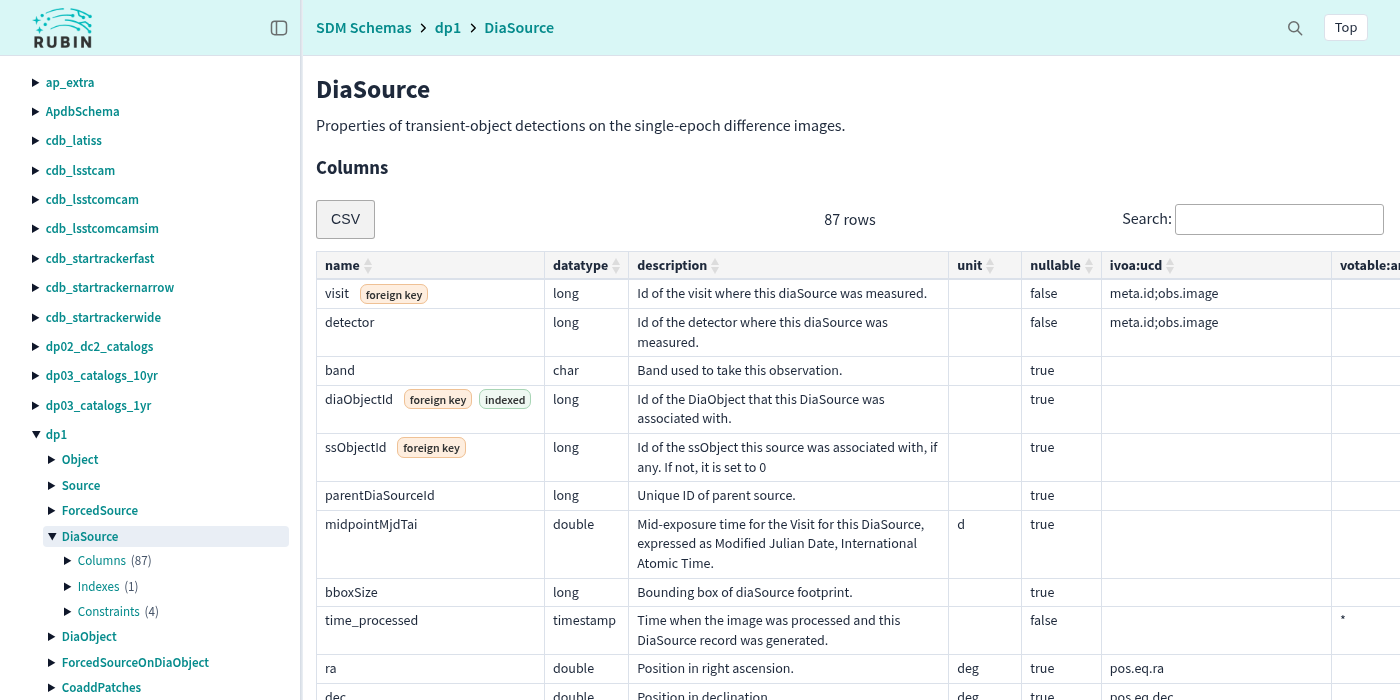
A table page, with its columns table.
Searching
Open the search with the search button (a magnifying glass) at the right-hand side of the header, or press Ctrl+K (Cmd+K on macOS). It searches the names and descriptions of every schema, table, column, index and constraint on the site, and the UCDs of columns. Matches on a name are listed before matches on a description.
The tabs at the top show the results of each kind, with how many there are. Use the arrow keys to move through the results, and Enter to go to the one selected. Esc closes the search.
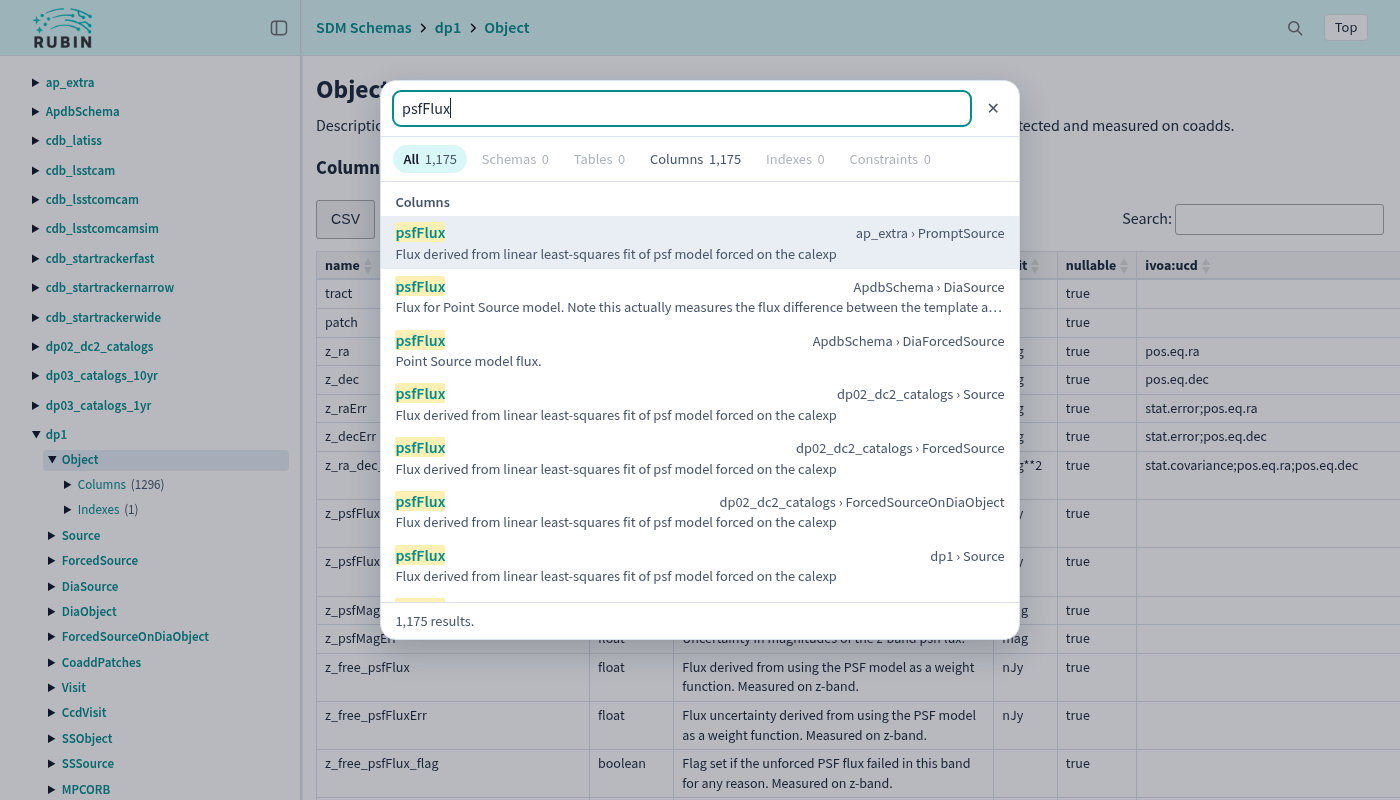
Searching for columns named psfFlux.
Configuration
The configuration file, passed with --config, is a YAML file, and every setting in it is optional.
Settings
titleThe site title. It is the first link in the header of every page, going to the home page, and the start of each page’s title in the browser tab. The default is “Home”.
descriptionText shown on the home page above the table of schemas, such as the purpose of the schemas. It is shown as plain text, not Markdown or HTML.
iconAn image shown at the top left of every page, linking to the home page, such as a logo.
faviconThe icon shown in the browser tab for every page (a PNG, ICO or SVG file).
stylesheetsA list of CSS files applied after the built-in stylesheet, in order, so later ones take precedence. See Changing the appearance.
maintainerThe organization that maintains the schemas, shown as “Maintained by” in the footer of every page. It has a
name, and optionally aurlits name links to.diagramsWhether to draw a relationship diagram on the page of each schema that has foreign keys (
trueorfalse). The default isfalse.show_empty_columnsWhether the columns tables show every column field, including ones that none of a table’s columns set (
trueorfalse). The name, datatype, description, unit and nullable fields are always shown; when this isfalse, the others, such asivoa:ucdortap:principal, are shown only in the tables where some column sets them to something other than their default (sotap:principal, which defaults to 0, is shown only if some column is principal). The default isfalse.
Note
Relative file paths in the configuration, for the icon, the favicon and the stylesheets, are relative to the directory of the configuration file, not the directory the command is run from.
Those files are copied into the site’s assets/ directory.
Example
This is the configuration of Rubin’s SDM Schemas site:
# Site title: the first breadcrumb item and the start of every page title.
title: SDM Schemas

# Site description, shown on the home page above the table of schemas.
description: "The Science Data Model (SDM) schemas are a curated subset of the Rubin Observatory's database schemas, for its user-facing data products. They cover the data releases and previews, Data Release Processing, the Alert Production and Prompt Products databases, the Consolidated Database of Image Metadata, and other observatory metadata. Each schema is made up of tables, which contain columns along with keys, indexes and other database objects."

# Site icon at the top left of every page, relative to this file.
icon: rubin-logo.png

# Icon shown in the browser's tab, relative to this file.
favicon: favicon.png

# Stylesheets applied after the built-in one, relative to this file.
stylesheets:
  - sdm_schemas.css

# Relationship diagrams on schema pages (drawn by Mermaid).
diagrams: true

# Show every column field, including ones no column in a table sets.
show_empty_columns: false

# Organization named in the footer.
maintainer:
  name: Rubin Observatory
  url: https://rubinobservatory.org/
Note
In YAML, text such as the title and description doesn’t usually need quotes. Put it in quotes if it contains a colon followed by a space, or starts with a character YAML treats specially, such as #, [, {, *, & or a quote; otherwise YAML may misread it or report an error.
Changing the appearance
The built-in stylesheet sets its fonts, sizes and colors as CSS variables in a :root rule. A stylesheet of your own usually only needs its own :root rule giving new values to some of those variables.
This is Rubin’s sdm_schemas.css, which changes the font and colors to match Rubin’s visual identity:
@import url("https://fonts.googleapis.com/css2?family=Source+Sans+Pro:ital,wght@0,400;0,600;0,700;1,400&display=swap");

:root {
  --font-body: "Source Sans Pro", sans-serif;
  --color-link: #058b8c;
  --color-surface: #f5f5f5;
  --color-focus: #058b8c;
  --color-icon: #6a6e6e;
  --color-icon-hover: #1f2121;
  --color-tag-text: #313333;
  --font-weight-tag: 600;
}

/* Header bars and the selected search tab in the lightest complementary
   teal. */
.content-header,
.sidebar-header,
.search-tab[aria-selected="true"] {
  background: #d9f7f6;
}
These are some of the variables that can be changed:
--font-bodyThe font of the whole site.
--font-table,--font-size-tableThe font and text size of the tables. They follow
--font-bodyunless set.--color-linkThe color of links.
--color-text,--color-mutedThe color of text, and of less prominent text such as the footer.
--color-pageThe background of the page.
--color-surfaceThe background of table headings, and of buttons when the pointer is over them.
--color-icon,--color-icon-hoverThe color of the sidebar and search buttons, normally and when the pointer is over them.
--color-focusThe outline of whatever has the keyboard focus.
--color-tag-primary-key,--color-tag-foreign-key,--color-tag-index,--color-tag-text,--font-weight-tagThe colors and text weight of the column tags.
--color-tag-primary-key-border,--color-tag-foreign-key-border,--color-tag-index-borderThe border colors of the column tags.
--sidebar-widthThe starting width of the sidebar.
The full list of variables which can be overridden is at the top of the built-in stylesheet, style.css.
Only the stylesheets themselves are copied into the site, so any fonts or images they use must be loaded from a full URL, as the font is in Rubin’s stylesheet.